https://www.flackbox.com/cisco-ios-cli-shortcuts
Standard user prompt
When first accessing an IOS device, we will be presented with the router exec prompt (marked by > in the CLI). Note that this is not very commonly used because it has a limited set of commands that can be used.
Info
If we want to see available commands at the exec prompt, enter a question mark, ’?’
Finding commands
A command can be abbreviated by entering a sequence of characters that unambiguously would lead to that command. For example, en leads to enable because it is the only command with that char sequence.
If we want to see what arguments can be passed to a command we can enter the command (or its abbreviation) followed by a space and a question mark:
<hostname># sh ?

>> [List of valid commands]
Additionally, IOS has tab completion and typo detection.
Note that when looking at a list of available arguments, <cr> means that the command can be run without further arguments.
Privileged exec mode
To enable privileged mode (also known as enable prompt) simply enter enable at the exec prompt. This will change that the command prompt will change from > to #, meaning we are in privileged mode. To exit privileged mode simply enter disable.
Note
The command prompt has two modes: standard (restricted) mode, indicated by
>, and privileged mode, indicated by#.
The enable prompt is most commonly used for finding information. If we want to make changes to the configuration, we have to go to ‘global configuration’, Configure terminal.
Configure terminal
To enter the configuration terminal we can simply enter conf t (or configuration terminal) from the enable prompt. This will now change our prompt to <hostname>(config)#.
Config hierarchy
Global configurations are accomplished at the conf t level. However, we will often want to create specific configurations for individual ports or interfaces. As a result, from the configuration level we must enter the specific interface level.
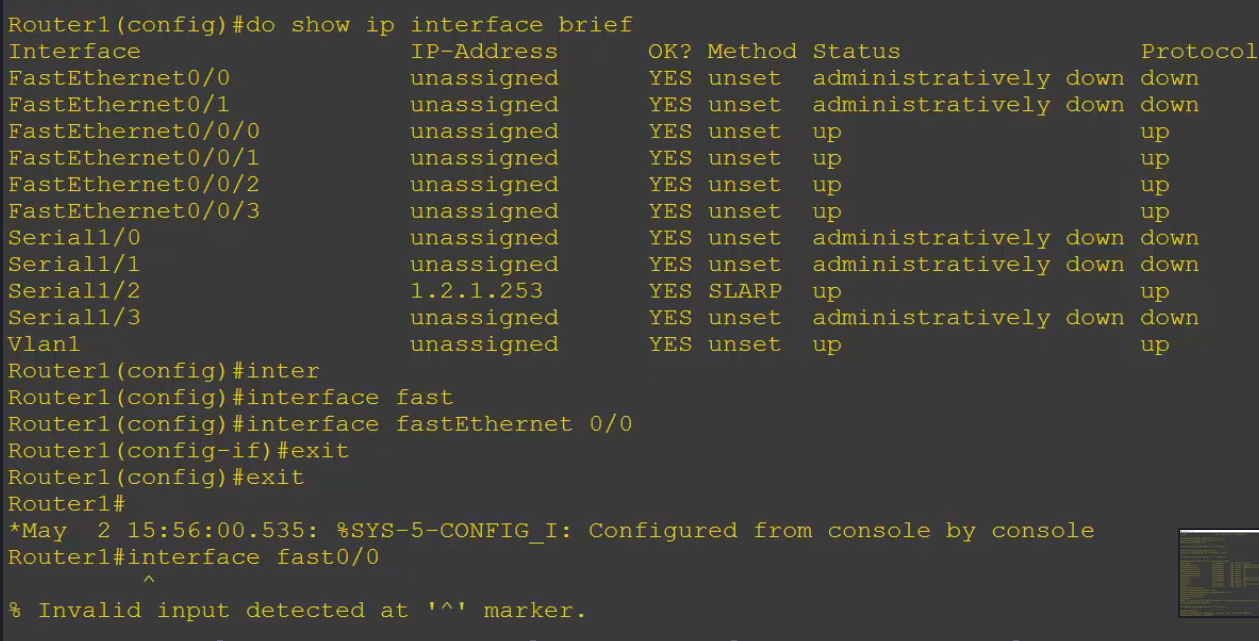
Note
The hierarchy must be navigated one by one - we cannot access the interface configuration from the enable prompt.
Common commands
| Command | Use |
|---|---|
do show ip interface brief | Shows all interfaces, their state, whether an IP is asigned, etc. |
do show running-config | Shows entire configuration of the router |
do show run int <interface> | Shows running config for a particular interface |
do show run <pipe> ? | Allows us to filter and control where the printing begins (using regex) |
Note
The
show run | <begin/exclude> <interface/protocol/section>command uses regular expressions that are case sensitive to return the results.
Config management
In IOS, changes made to the configuration take effect immediately and are added to the running configuration, which is the set of options currently applied to the device right now.
There is also a start-up config that takes effect when the device boots up. This means that to make sure that the configuration we create ourselves is applied to the device, we have to copy the running config to the start-up config.
This is designed such that we can back out of mistakes.
To copy the configuration we can use the command copy run start from the enable prompt.
To backup our configuration we can run copy run ? to see what options are available, including flash:file syste, as well as ftp, http(s), etc. For example, if from the enable prompt we save a configuration to flash memory with copy run flash:<filename> we can then see the contents of the storage area with sh flash.
To restore from the backup we can replace the startup config with our backup in a two-step process:
- Erase startup config
erase start
- Copy backup to startup
- “copy flash:
start
- “copy flash:
If we can to read the consents of a file we can use read.
Config storage locations
The IOS image is stored in flash. The startup config is stored in non-volatile memory, NVRAM. The running configuration is stored in RAM (loaded into there from the start up config on device boot-up).