Whereas top is a continuously updating monitoring tool, ps gives us an instant snapshot of what our system is doing.
The most simple version of ps is to run it without arguments. It will return something like:
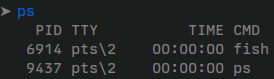
When running ps with no arguments, we will get information about processes runing in the particular terminal session that spawned the ps process. This is why the list is so short.
While I think many of these are self evident, an interesting one to talk about is TIME. This refers to how much time the CPU spent processing the command.
Useful commands
ps x→ display all processes running without the requirement to list only those with a TTY. (another way to see it: every process running as my user)- A
?in the TTY field means the process was started by the system - STAT refers to many things:
Smeans the process can’t be placed to sleep automaticallysmeans its a “process leading” in a process treeRmeans the process is runningTmeans its stopped
- A
ps -He→ Shows a process hierarchy or relationship.Hshows the relationship between processeseshows all processes (same asA)
ps -aux→