Basic Commands
docker run [-d: detached] <container>
docker container stop <name>
docker container ls [-a: print all containers, not just running]
docker image ls
docker image build
docker image rm <image-name or ID>
docker image pull <image-name>
docker run <container>
Most used commands
| command | explain | shorthand |
|---|---|---|
docker image ls | Lists all images | docker images |
docker image rm <image> | Removes an image | docker rmi |
docker image pull <image> | Pulls image from a docker registry | docker pull |
docker container ls -a | Lists all containers | docker ps -a |
docker container run <image> | Runs a container from an image | docker run |
docker container rm <container> | Removes a container | docker rm |
docker container stop <container> | Stops a container | docker stop |
docker container exec <container> | Executes a command inside the container | docker exec |
Flags:
-t -> tty
-i -> interactive
-d -> detached
--name
Logs:
docker logs -f
docker pause/unpause <container> docker attach`
If we want to attach to a container while making sure we don’t close it from the other terminal we can specify to not attach STDIN with --no-stdin
If container will not read stdin commands, we can use docker kill looper then docker rm looper. This is requivalent to `docker rm —force looper
ENTRPOINT and defaukt commands
FROM ubuntu:24.04

WORKDIR /mydir

RUN apt-get update && apt-get install -y curl python3
RUN curl -L https://github.com/yt-dlp/yt-dlp/releases/latest/download/yt-dlp -o /usr/local/bin/yt-dlp
RUN chmod a+x /usr/local/bin/yt-dlp

ENTRYPOINT ["/usr/local/bin/yt-dlp"]

# define a default argument
CMD ["https://www.youtube.com/watch?v=Aa55RKWZxxI"]
The above can run as docker run yt-dlp with a default URL to download, or as `docker run yt-dlp <new_address>
there are two ways to set the ENTRYPOINT and CMD: exec form and shell form. We’ve been using the exec form where the command itself is executed. In shell form the command that is executed is wrapped with /bin/sh -c - it’s useful when you need to evaluate environment variables in the command like $MYSQL_PASSWORD or similar.
| Dockerfile | Resulting command |
|---|---|
| ENTRYPOINT /bin/ping -c 3 CMD localhost | /bin/sh -c ‘/bin/ping -c 3’ /bin/sh -c localhost |
| ENTRYPOINT [“/bin/ping”,“-c”,“3”] CMD localhost | /bin/ping -c 3 /bin/sh -c localhost |
| ENTRYPOINT /bin/ping -c 3 CMD [“localhost”] | /bin/sh -c ‘/bin/ping -c 3’ localhost |
| ENTRYPOINT [“/bin/ping”,“-c”,“3”] CMD [“localhost”] | /bin/ping -c 3 localhost |
Ports
Security reminder: Opening a door to the internet
Since we are opening a port to the application, anyone from the internet could come in and access what you’re running.
Don’t haphazardly open just any ports - a way for an attacker to get in is by exploiting a port you opened to an insecure server. An easy way to avoid this is by defining the host-side port like this -p 127.0.0.1:3456:3000. This will only allow requests from your computer through port 3456 to the application port 3000, with no outside access allowed.
The short syntax, -p 3456:3000, will result in the same as -p 0.0.0.0:3456:3000, which truly is opening the port to everyone.
Usually, this isn’t risky. But depending on the application, it is something you should consider! `
Tagging
We can tag images locally for convinience. For example, docker tag ubuntu:25.04 ubuntu:mooc.fi means that ubuntu:mooc.fi refers to ubuntu:25.04.
Layers
Layers have multiple functions. We often try to limit the number of layers to save on storage space but layers can work as a cache during build time. If we just edit the last lines of Dockerfile the build command can start from the previous layer and skip straight to the section that has changed. COPY automatically detects changes in the files, so if we change the hello.sh it’ll run from step 3/3, skipping 1 and 2. This can be used to create faster build pipelines. We’ll talk more about optimization in chapter 4.
Running processes inside docker
docker exec looper ls -lah
Copying file to container
docker cp ./additional.txt zen_rosalind:/usr/src/app/
docker diff zen_rosalind
  C /usr
  C /usr/src
  C /usr/src/app
  A /usr/src/app/additional.txt
  C /root
  A /root/.ash_history
---
A = added, D = deleted, C = changed
---
What is Docker?
- Docker is a set of tools to deliver software in containers.
- Containers are packages of software.
Containers vs Virtual Machines:
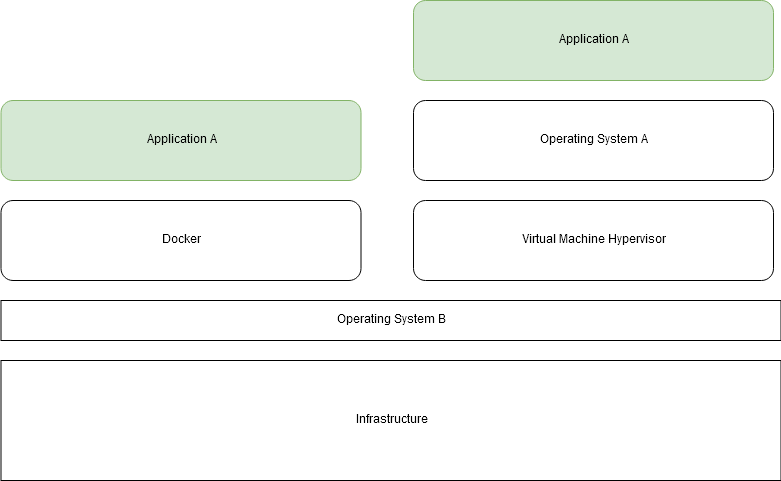
Virtual Machines (VMs) use Virtualization to run on a hypervisor (opens in a new tab), which virtualizes the physical hardware. Each VM includes a full operating system (OS) along with the necessary binaries and libraries, making them heavier and more resource-intensive. Containers, on the other hand, share the host OS kernel and only package the application and its dependencies, resulting in a more lightweight and efficient solution.
Containers offer faster startup, better resource utilisation, and high portability across different environments, though their isolation is at the process level, which may not be as robust as that of VMs.
Image and containers
Containers are instances of images.
A Docker image is a file. An image never changes; you can not edit an existing file. Creating a new image happens by starting from a base image and adding new layers to it. We will talk about layers later, but you should think of images as immutable, they can not be changed after they are created
Creating images
docker image build
Based on a Dockerfile:
FROM <image>:<tag>

RUN <install some dependencies>

CMD <command that is executed on `docker container run`>
Volumes and storage
Containers can use bind mounts or volume mounts (also known as Named Volumes). The former involves mapping a storage path in the host system to a location inside the container, while the latter means that the container engine handles the creation, storage location, and permissions of the volume.
| Feature | Bind Mount (Host Path Mapping) | Named Volume (Volume Mapping) |
|---|---|---|
| Management | Host-managed. You manage the path, permissions, and location on the host. | Docker-managed. Docker handles creation, location, and the volume’s lifecycle via the Docker CLI (docker volume...). |
| Host Location | Anywhere on the host’s file system (e.g., /home/user/data). | Docker’s internal storage area (e.g., typically /var/lib/docker/volumes/). Location is abstracted. |
| Portability | Low. Tied to a specific directory structure on the host machine. | High. Referenced only by its name; Docker ensures it works across different host systems and OSs (Linux/Windows). |
| Security | Lower. Exposes a host path directly; a container could potentially modify critical host files. | Higher. Isolated within Docker’s managed storage area, reducing host exposure. |
| Initial Content | Does not copy files from the container image. The container’s pre-existing files are obscured by the mount. | Can pre-populate content: if the volume is empty and the container has files at the mount point, Docker copies them into the volume. |
| Primary Use | Local development (sharing code), configuration files, logs, or accessing host tools. | Production data persistence (databases), sharing data between multiple containers, or easy migration and backup. |