Ping
Uses ICMP (Internet Control Message Protocol) requests, which like TCP and UDP, makes part of the TCP-IP suite. These requests test two-way connectivity, since the request will have to travel and then from the destination.
On Cisco Devices, ICMP requests can show . for unsucessful requests, ! for successful ones. If a router discards the packet the response will be U (this is if they are blocked by Access Control List and the like)
Extended Ping
Suppose PC1 cannot successfully connect to PC3. It is possible to test the connectivity from R1 by sending a ping to PC3 - however, if this does succeed it may be because R4 has a route to the 10.0.0.0/24 network, but not necessarily to the 10.0.1.0/24 network.
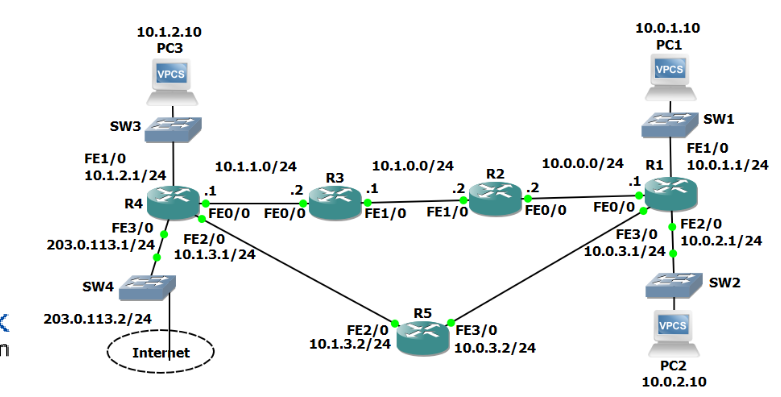
As a result, we need to send the ping request from the same subnet where we have a problem. To do so, invoke the ping command on the relevant router without any arguments. This well then allow us to fill in all the relevant data (make sure to say yes to “Extended commands”).
Note
When troubleshooting, always do ping requests from the same subnet as the problem device.
Note
You can also invoke the arguments directly in the CLI, i.e.
ping 10.1.2.10 source 10.0.1.1 repeat 1000 size 1500 df
Traceroute
Traceroute is similar to ping, and also uses ICMP as a protocol. The difference is that it will trace every step of the way by using the TTL (Time to live) header.
Normally, TTL is used to prevent looping requests. It functions by letting each route decrease the TTL value by 1, until it reaches 0 and the packet is discarded, thus avoiding a ping-pong scenario between two routers, for instance. Whenever the TTL reaches 0, the relevant device sends a TTL exceeded message.
Traceroute takes advantage of this behaviour by sending cascading requests: first with a TTL of 1 (which means it is discarded as it arrives to the first hop and returns with an exceedance message). Then, Traceroute will send a new package with a TTL of 2, etc. etc. This way, it learns each hope IP address and distance systematically.
Other tools
Layer 1
show ip interface briefshow interface
Layer 2
show arpshow mac address-table
Layer 3
telnet
DNS
nslookup- ping by FQDN